Model Library
The Model Library view shows you all the currently downloaded models and details about them all at a glance.
You wont use this page a lot, but knowing its there is helpful. Lets have a look over what it does!
Metadata panel
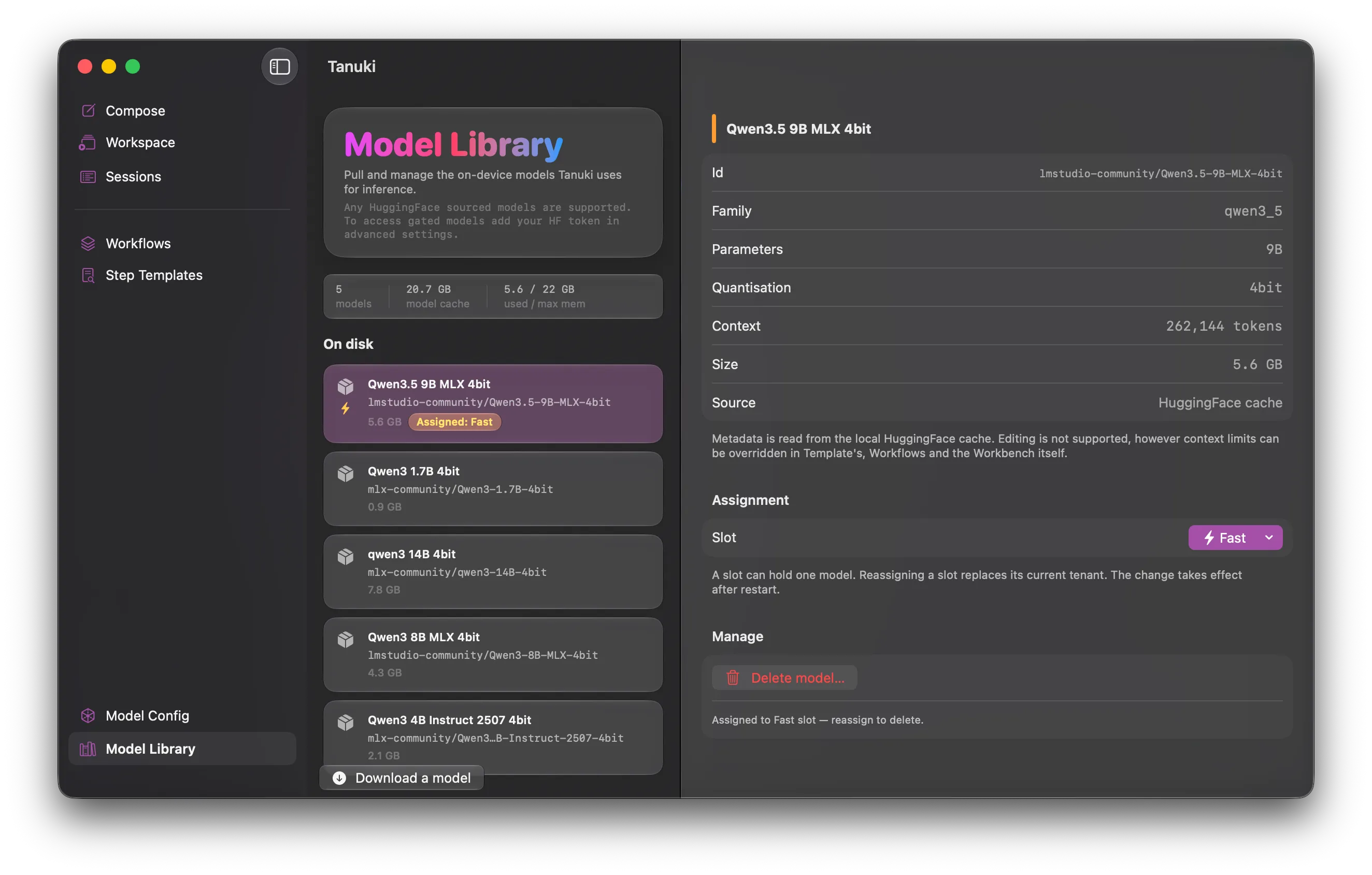
Section titled “Metadata panel”At the top of the center panel, you can see a small block that holds some metadata about your model library and your machine.
You can see how many models are present in the model cache location, how much space the cache is taking on your hard drive and an indicator about memory usage.
Each model consumes a lot of memory space while the app is running, the indicator on the right of the metdata block shows you how much space the currently selected models will use, the lower number a recommended max to not cross.
The recommendation is calculated based on the amount of shared memory your machine has, if you have the room you could add a model to the deep slot.
On Disk model list
Section titled “On Disk model list”Below the metadata you see the list of models currently installed on your machine, with those that are active at the top with a chip showing which slot they are allocated to.
Select a model in this list to show its details in the right hand column. You can right click on a non-assigned model to delete it (or from a button in the right column).
Model detail view
Section titled “Model detail view”The model detail view shows the read only default configuration of a model, these come from the metadata inside the model, these settings can be overridden per model (via the Model Config view), in a workflow or a context template.
You can also reassign a model into an open slot from this view, or delete it.