Configure an Output Adapter.
Output adapters are a powerful extension to Tanuki, allowing you to set storage locations that output is automatically pushed to on completion of a workflow. There are several ways to trigger output adapters, but they must be configured properly globally, then either in the Workflow directly or at run time in the Workspace view.
Enabling and disabling output adapters can happen at multiple levels. Lets start at the beginning, globally enabling our adapter.
Globally enabling an output adapter
Section titled “Globally enabling an output adapter”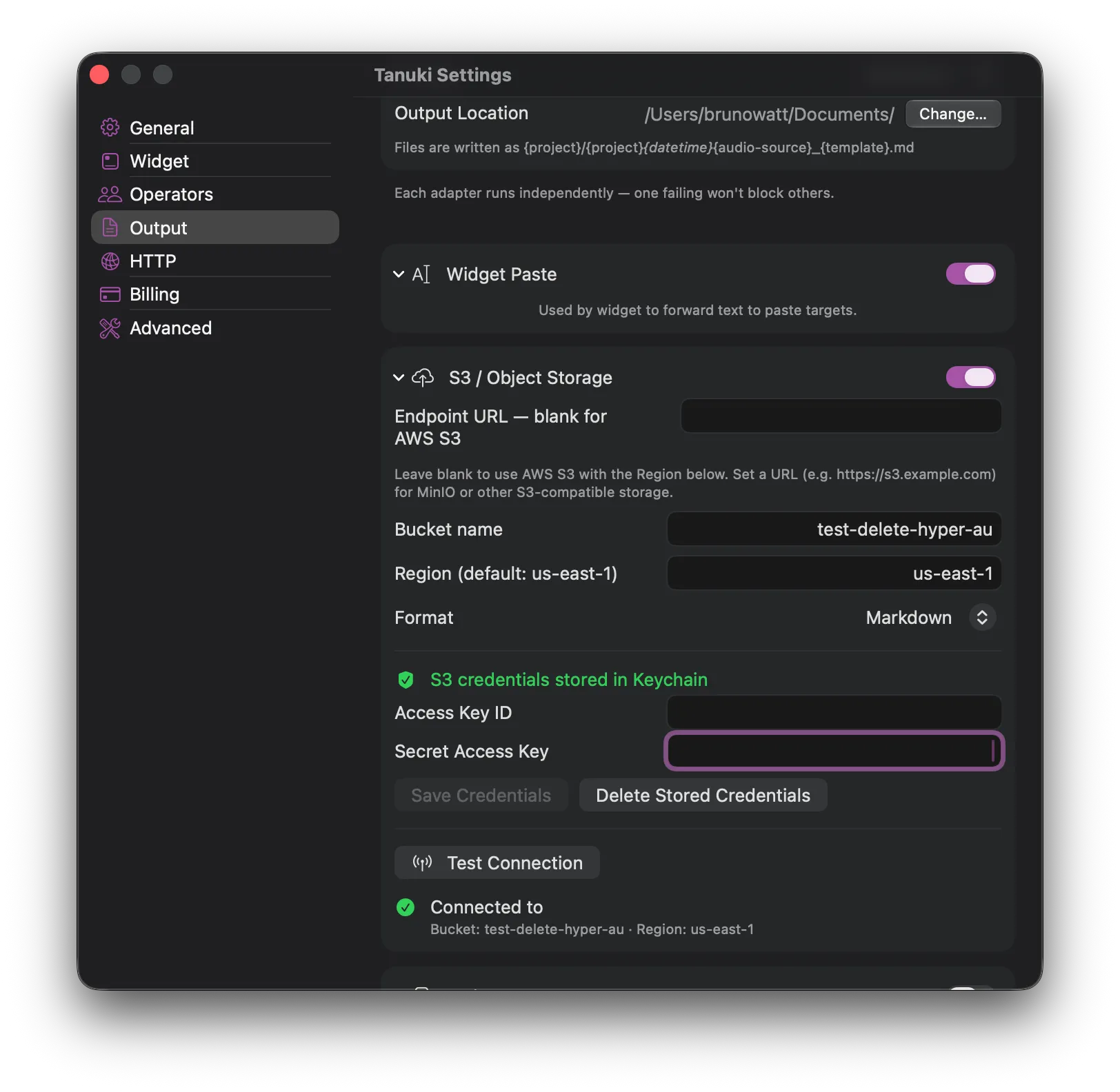
Adapters must first be enabled globally through the Config -> Output menu. Different providers have different configuration requirements, we will enable S3 so we first enable it and expand its panel.
If you use this and point it at s3 (as opposed to say a local Minio instance) you dont need to add the Endpoint URL but the other values are required.
Secrets added are injected into the Keychain securely and never persisted in any other location, your secrets are safe with Tanuki.
Once you have configured the bucket, region and saved your credentials, press the ‘test connection’ button. If your response is green/success, then you are ready to use your adapter in a workflow!
Firing an output adapter from the main Workspace.
Section titled “Firing an output adapter from the main Workspace.”Most workflow triggering will occur through the Workspace view, once you have dropped a file in to analyse and selected a workflow you will see the output adapters block.
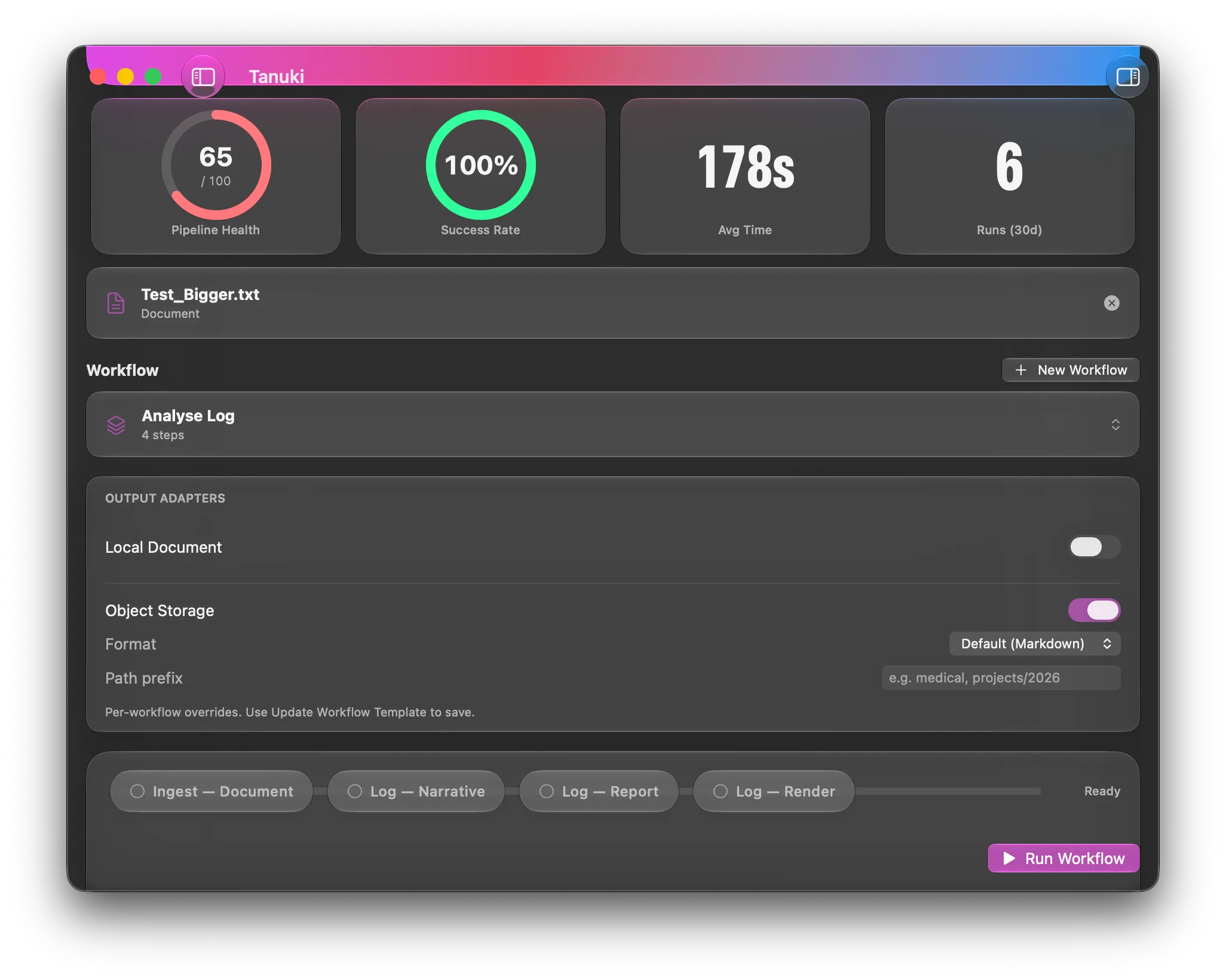
You can now turn on and off each of the output adapter targets. When you press run and the workflow completes, your final output will be forwarded to the selected outputs in the desired format.
Note that in the case of s3 there is an extra field, you can target a folder within the bucket from the workspace, or within a workflow itself.
Setting output adapters in a workflow.
Section titled “Setting output adapters in a workflow.”id: 6E82EDED-621F-40D2-9B4D-5BD9C9D225A8name: My Deeper TranscriberisEphemeral: falsecreatedAt: 2026-07-01T12:56:52.164412975ZupdatedAt: 2026-07-01T13:16:15.933848977Zsteps:- id: 00000000-0000-4000-B000-000000000002 templateId: transcription- id: 00000000-0000-4000-B000-000000000003 templateId: dictation_clean generationParametersOverride: temperature: 0.1outputConfig: overrides: - s3: _0: enabled: true pathPrefix: test-path/2026 format: pdfWorkflows have the ability to set those same toggles you see on the Workspace page in a Workflow itself.
This means the fields will be pre-populated with your settings when a Workflow is chosen in the Workspace, and in HTTP mode will be fired (provided they are enabled).